
Why Use Report Builder?
Report Builder helps simplify reporting by allowing you to:
- Combine cases from different branches and locations into a single report
- Organize related cases together
- Reduce the need to share multiple individual cases
- Provide users with a consolidated view of activity across multiple locations
Creating a Report
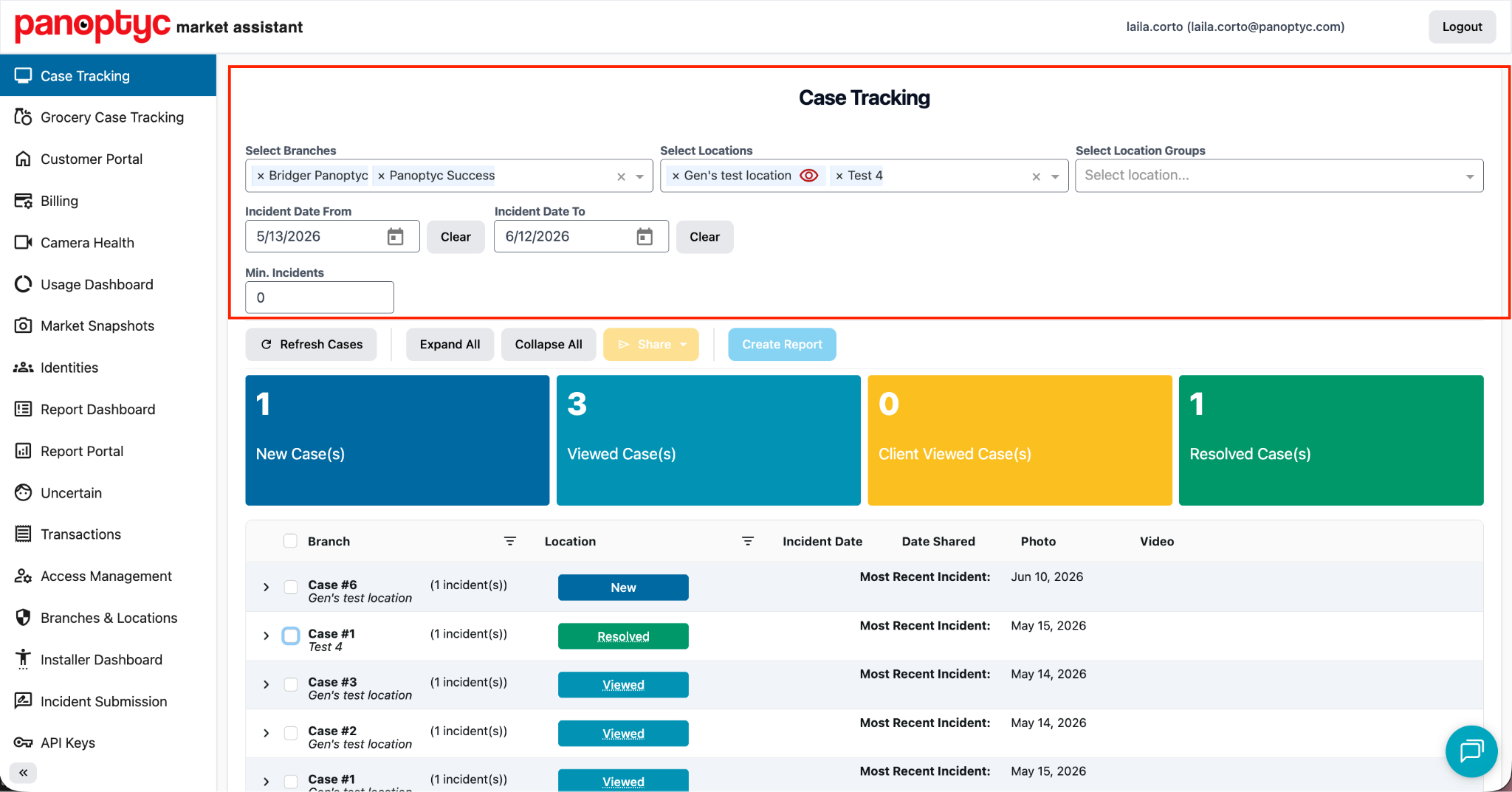
Step 1: Filter Cases
Within the Case Tracking Portal (CTP), use the available filters to select the branches, locations, location groups, date range, or other criteria you would like to include in your report.
Step 2: Select Cases
Review the filtered results and select the cases you would like to include.
You can select cases from different branches and locations.
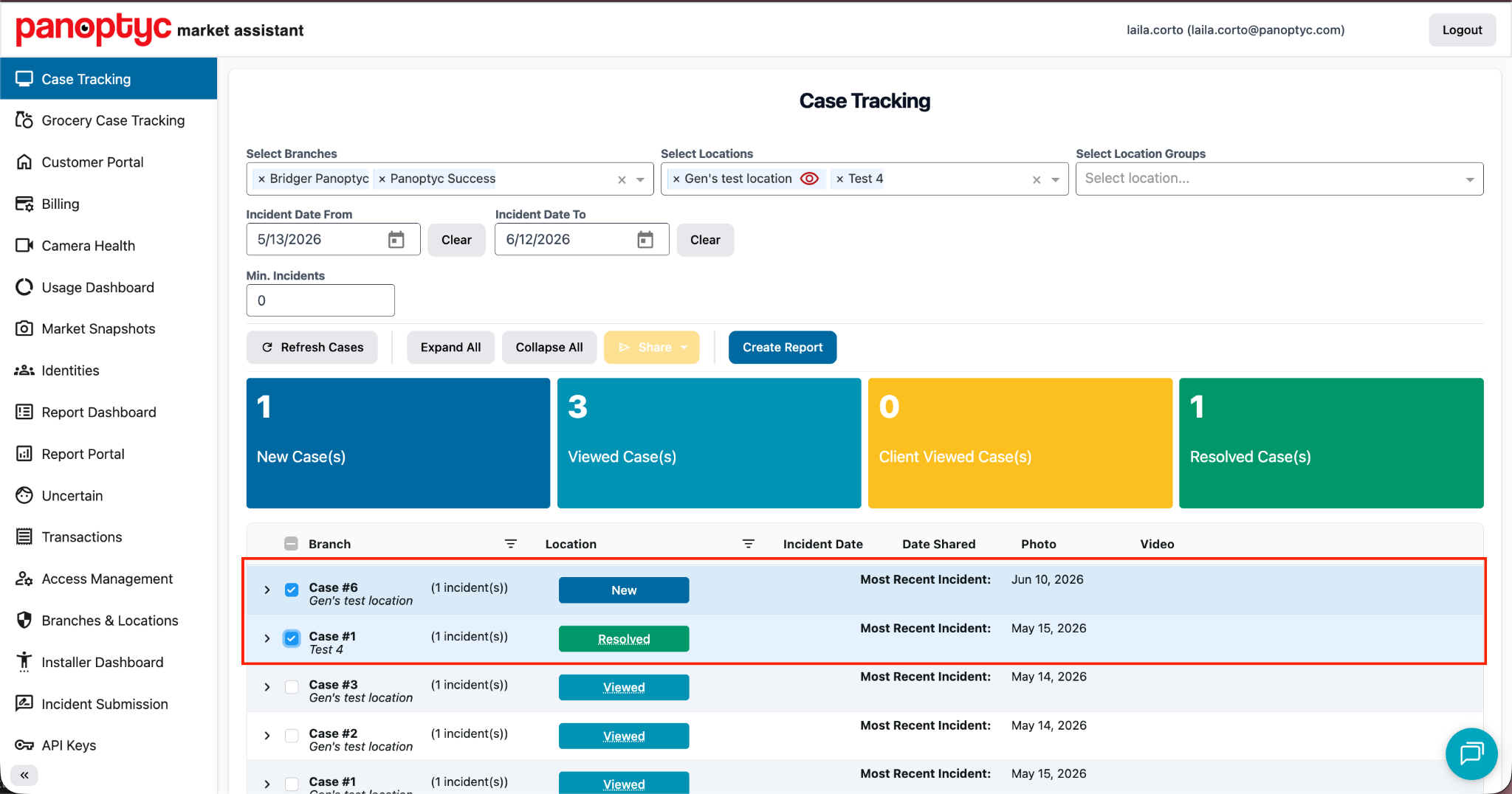
Step 3: Create the Report
Once you have selected all desired cases, click Create Report.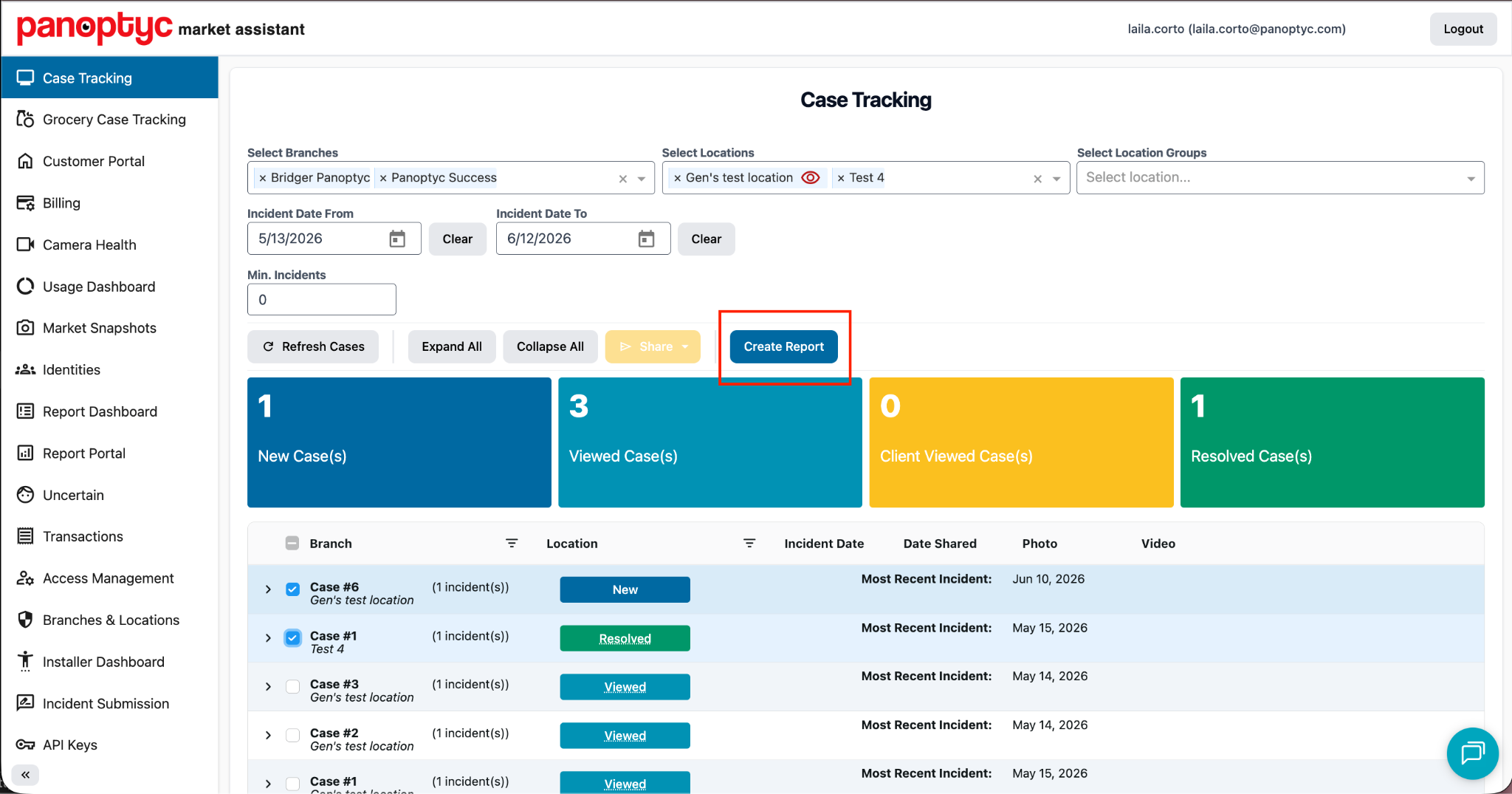
Step 4: Name the Report
Enter a name for your report and click Create Report to save it.
The report will be added to your Report Dashboard.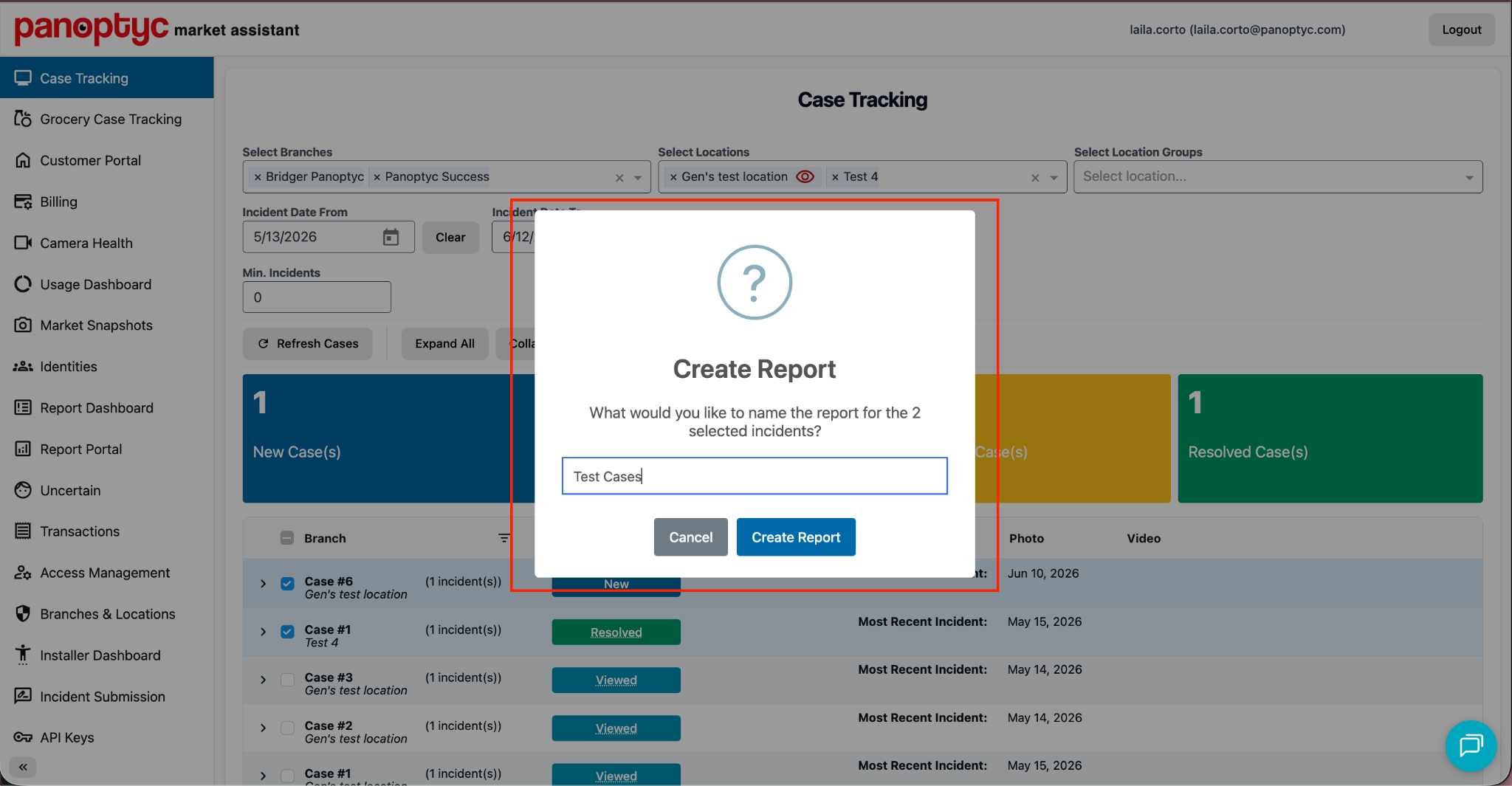
Viewing Reports
Step 1: Open Report Dashboard
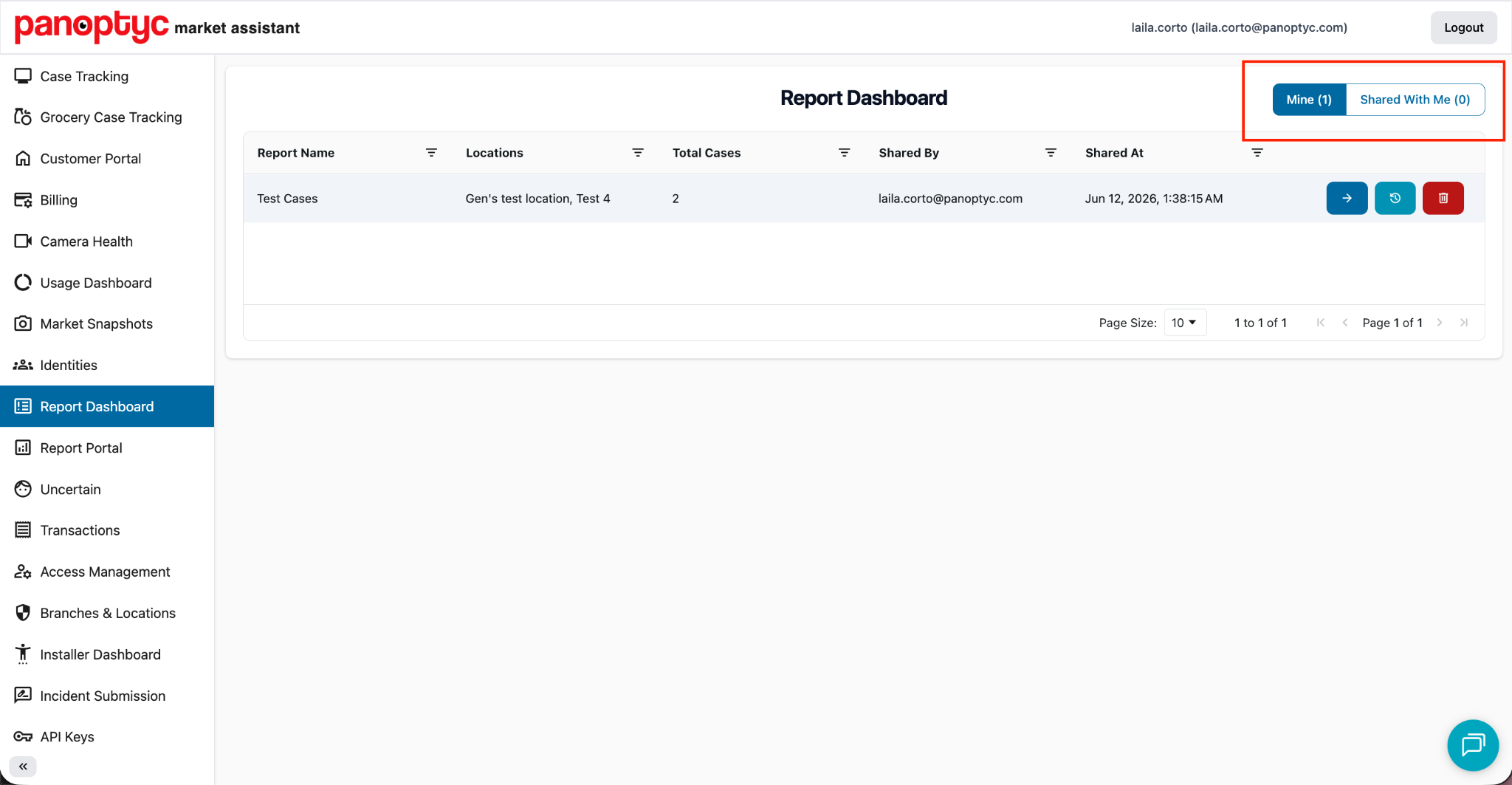
The Report Dashboard contains two tabs:
Mine
- Reports that you have created.
Shared With Me
- Reports that have been shared with you by other users.
Step 2: Open a Report
Locate the report you would like to review and click the Open Report button.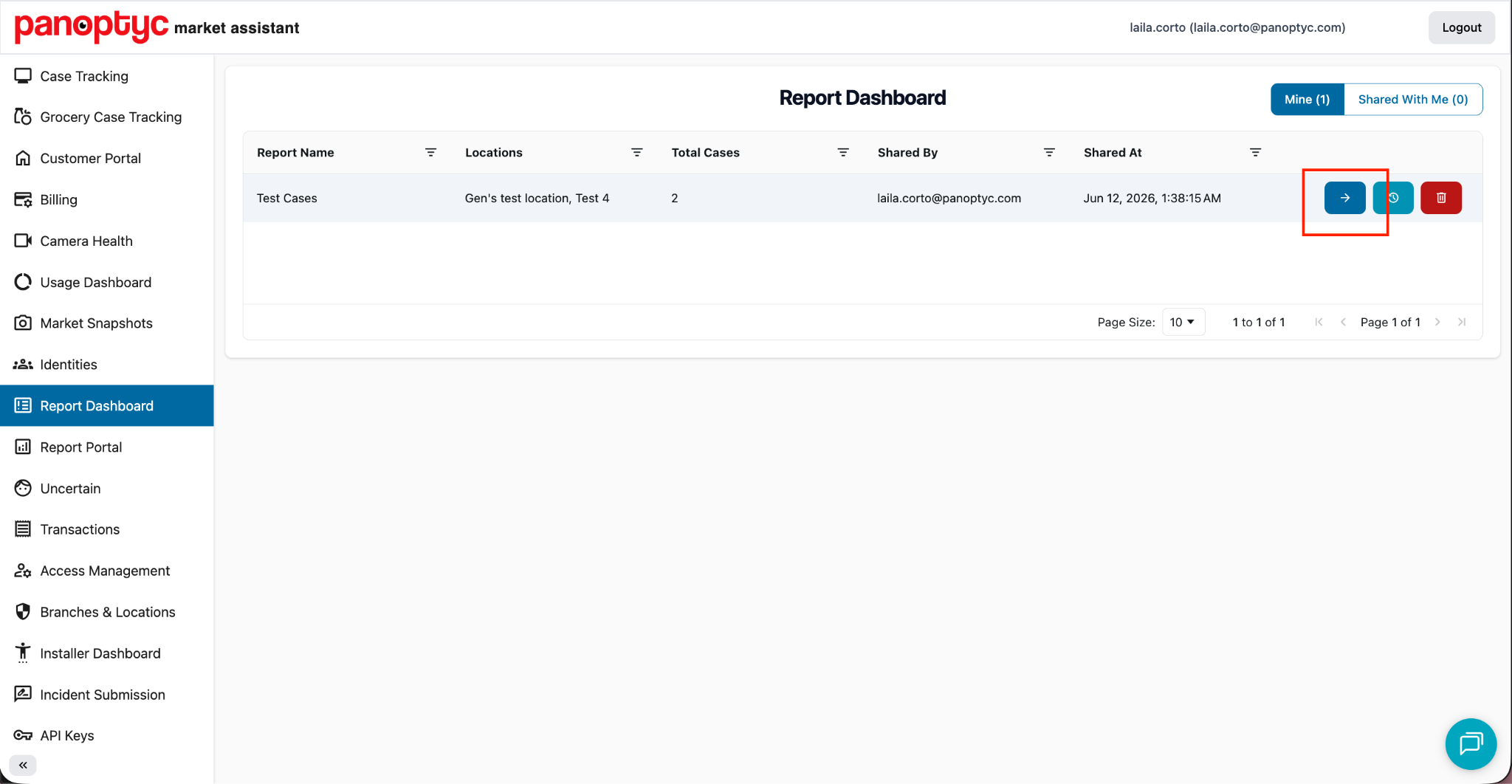
Sharing a Report
Step 1: Open the Report
From the Report Dashboard, open the report you would like to share.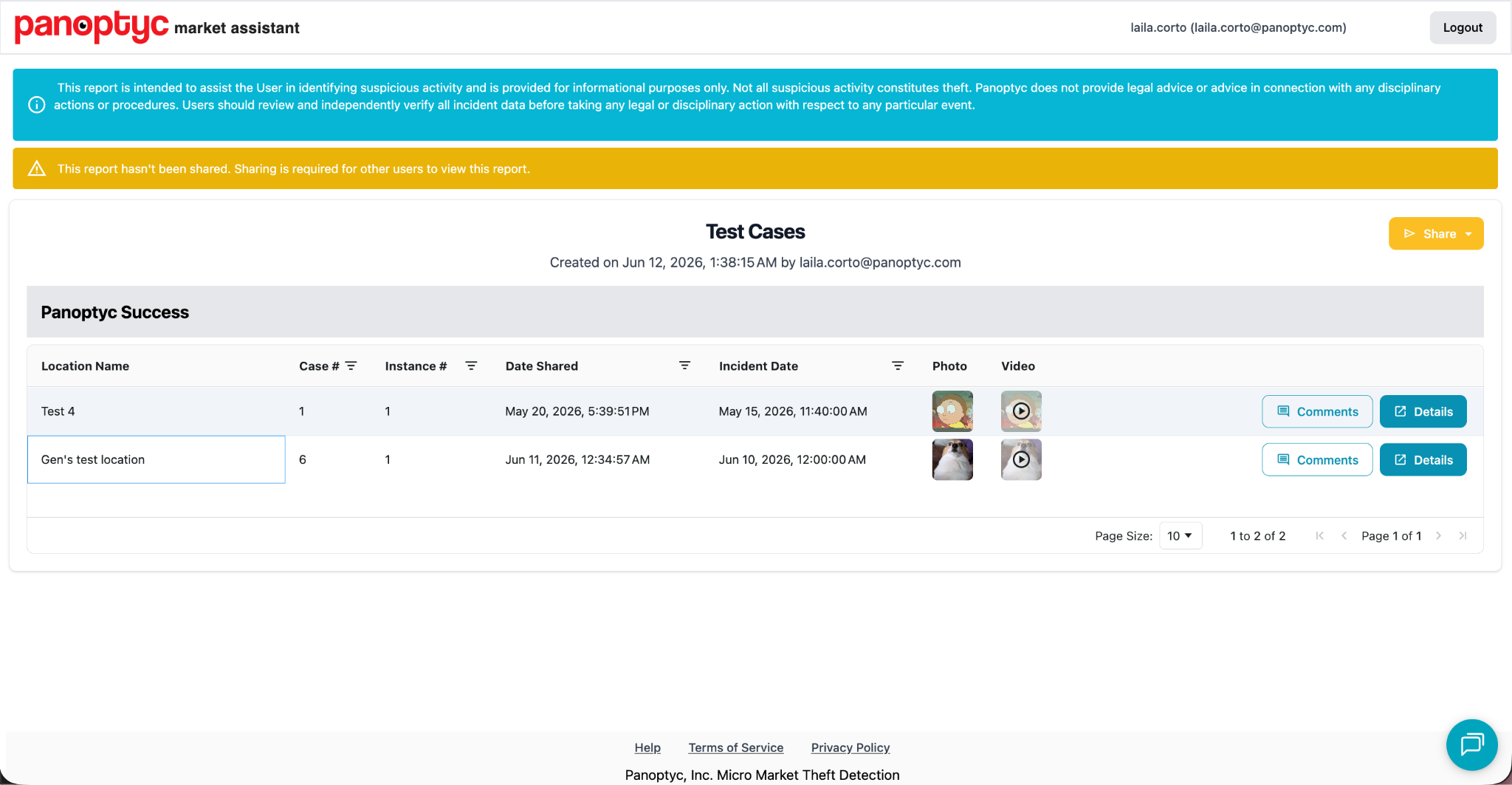
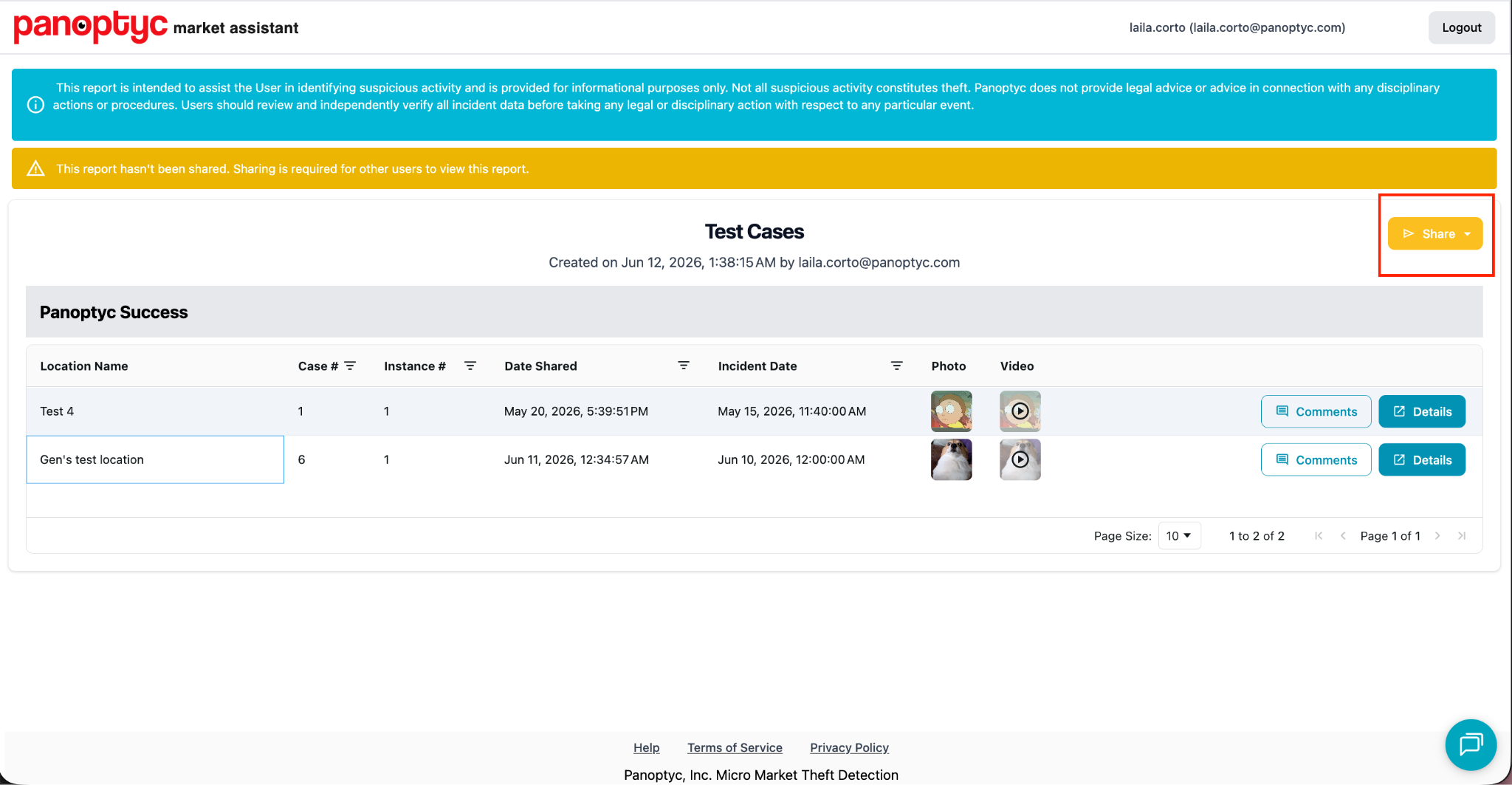
Step 2: Click Share
Click the Share button located in the upper-right corner of the report.
Step 3: Select a Sharing Option
Choose one of the following options:
Share to Specific Users
- Share the report with selected users.
Share to All Guest Users
- Share the report with all guest users associated with your account.
Recipients will be able to access the report from their Report Dashboard.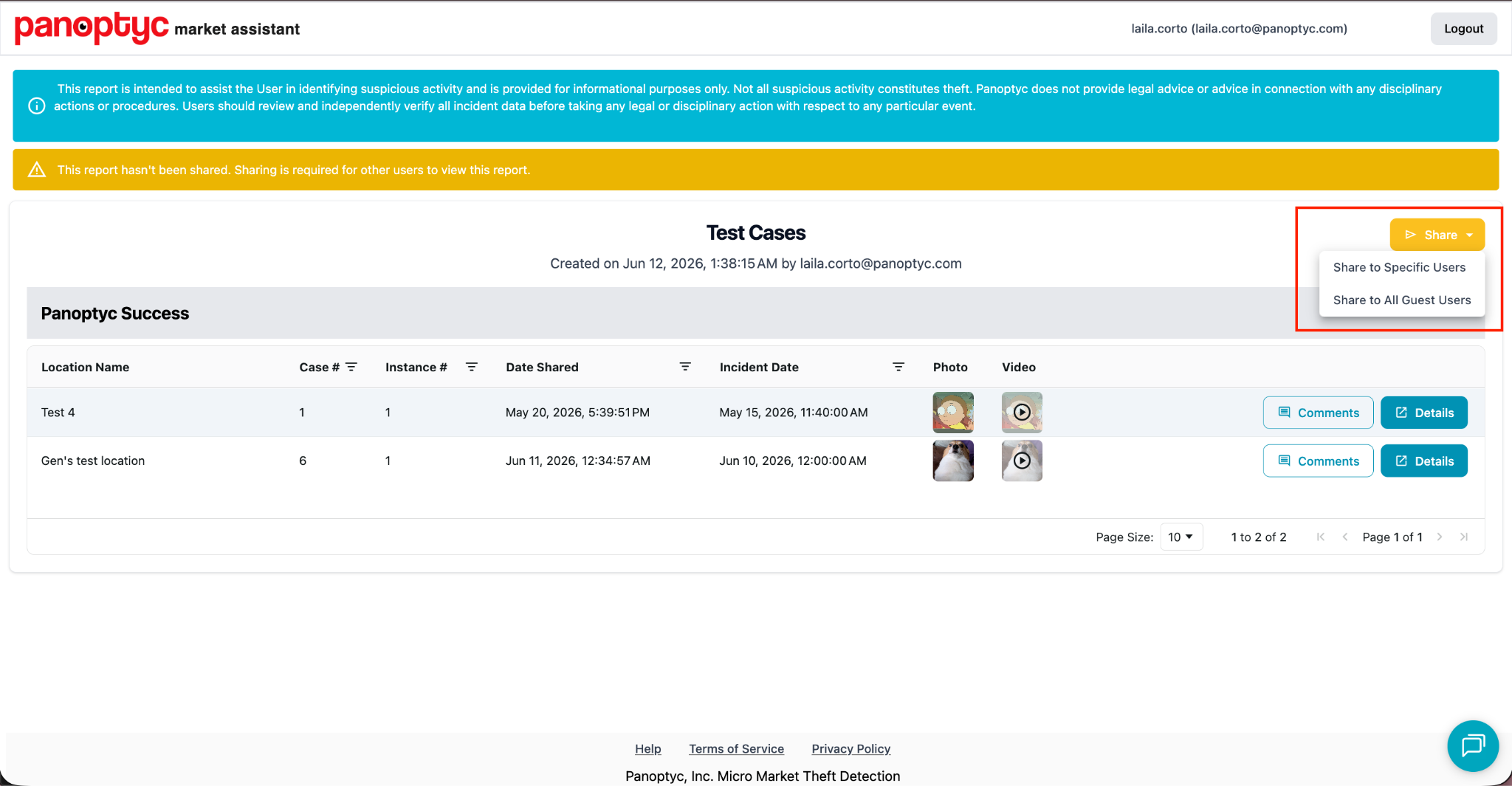
Additional Information
Reports remain available in the Report Dashboard after they are created, allowing users to review, manage, and share them whenever needed.