
Click here to watch a step-by-step video guide on what User Preferences is and how to use it.
How to Access User Preferences
- Log in to the Panoptyc Portal at:
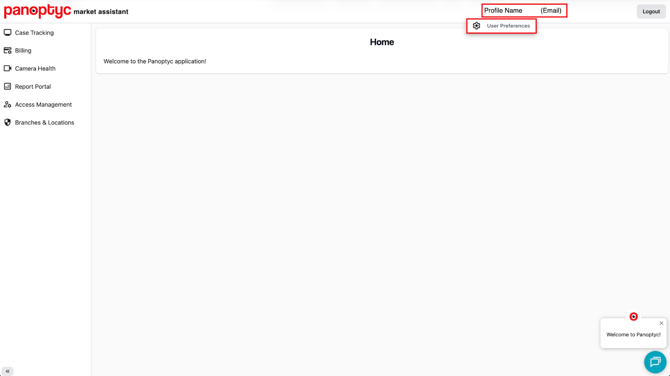
app.panoptyc.com - In the upper-right corner of the screen, click on your profile name next to the Logout button.
- From the dropdown menu, select User Preferences.
User Settings
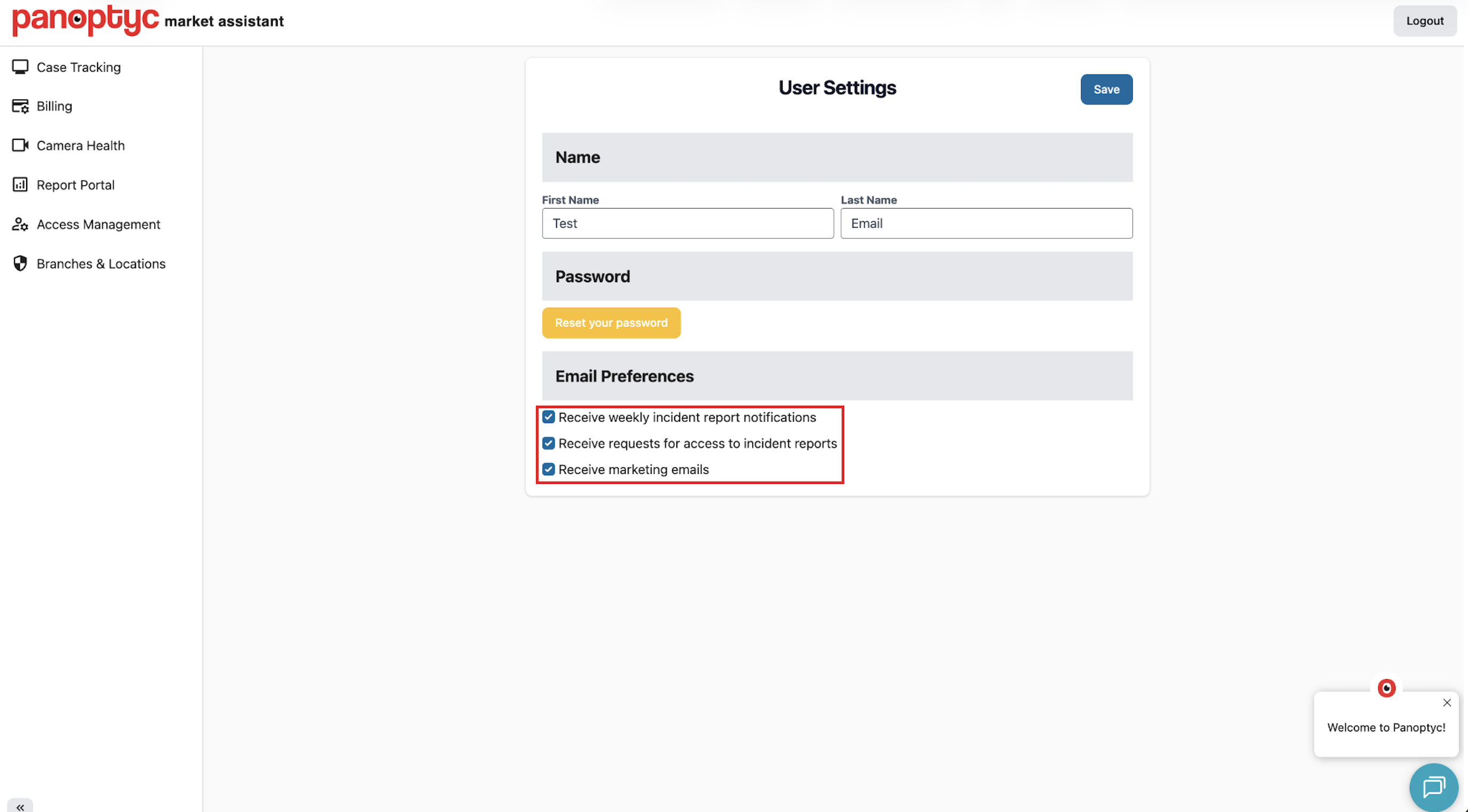
Once you open the User Preferences page, you will see the following sections:
Name Section
At the top of the page, your:
- First Name
- Last Name
will be displayed.
Email Preferences
Below the Reset Password section, you will find the Email Preferences options.
Users can choose whether they would like to receive the following notifications:
Available Email Preferences
- Receive weekly incident report notifications
- Receive requests for access to incident reports
- Receive marketing emails
To opt in or out:
- Check the box to receive the notification
- Uncheck the box to stop receiving the notification
Saving Your Changes
After making any updates to your preferences:
- Click the Save button located in the upper-right corner of the page.
- Your updated preferences will then be applied.