
What's in Your Package?
- The ShopperSense hub.
- White Ethernet Cable: For connecting the ShopperSense device to your PoE switch.
- Monitor with HDMI cable and powerbrick: These will be shipped separately from the ShopperSense device.
- Monitor Wall Mount: This will be shipped separately from the ShopperSense device.
What You'll Need to Already Have
- PoE Switch: A small box that connects your camera and router.
- A Rhombus Camera: Ensure it's fully set up and connected.
ShopperSense Hub:
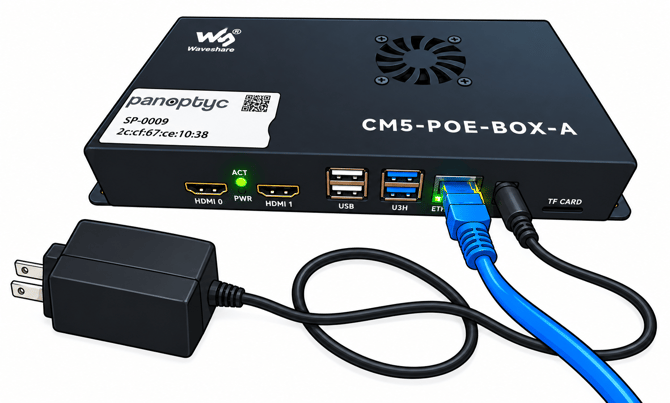
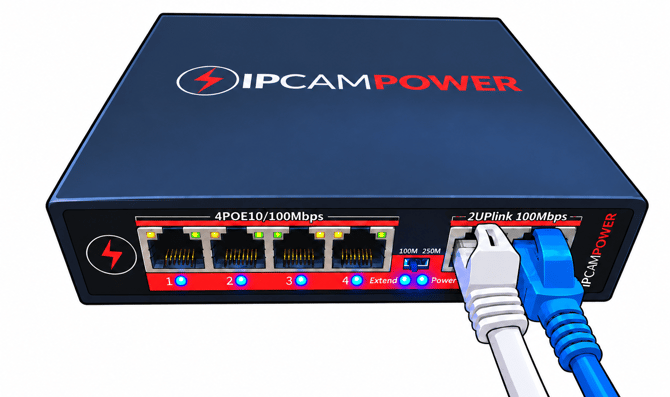
Setting Up Your ShopperSense Device
Step 1: Connect Power
- Connect the power adapter to the power port on the front of the ShopperSense device.
Step 2: Connect the Ethernet Cable
- Plug one end of the blue Ethernet cable into the non-PoE port next to the internet uplink on the PoE switch.
- Plug the other end into the Ethernet port on the ShopperSense hub.
Step 3: Connect the Camera
- Plug the camera’s Ethernet cable into the same PoE switch.
Step 4: Connect the Monitor
- Plug the monitor into an AC outlet using the included power brick.
- Connect one end of the HDMI cable to the monitor and the other end to the HDMI port on the ShopperSense device.
Step 5: Verify the Setup
- If everything is connected correctly, the monitor should display this message: “Missing camera configuration.”
- This is normal, it means your wiring setup is correct.
- This is normal — it means your wiring setup is correct.
ShopperSense Configuration
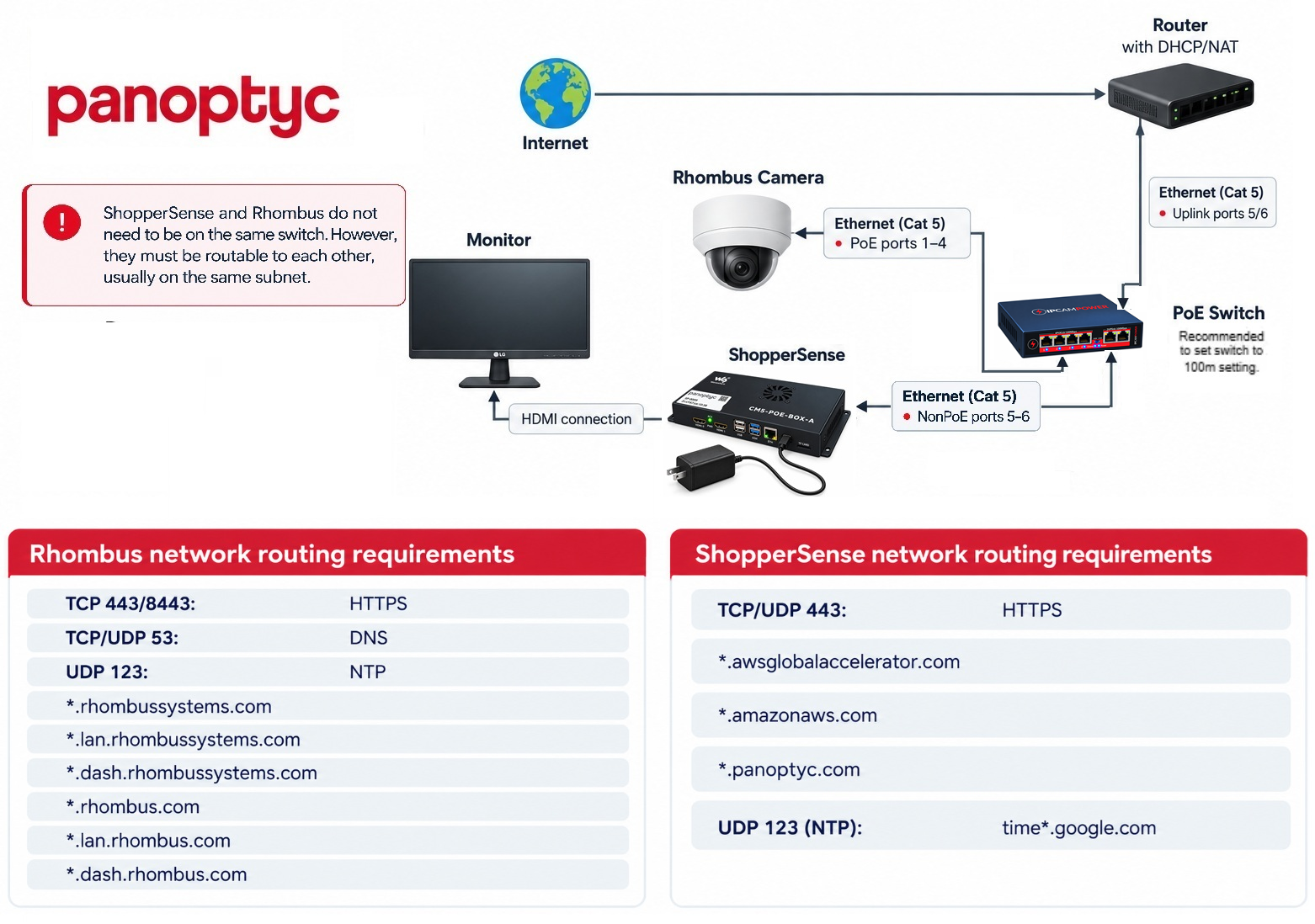
Camera Configuration
You can complete this step on the installation day or in advance.
Step 1: Go to https://app.panoptyc.com/ and sign in.
- From the left-hand menu, click Branches & Locations, then search for and select your branch.

- Once you're in the branch, you'll see the Installer Dashboard.

Step 3: Add your Camera Connection
- Scroll down to ShopperSense Configurations.
- Click the “+” (plus) button to add a new configuration. (Do not click PanoBridge Configurations.)

- Fill out the form and click “Connect ShopperSense.”
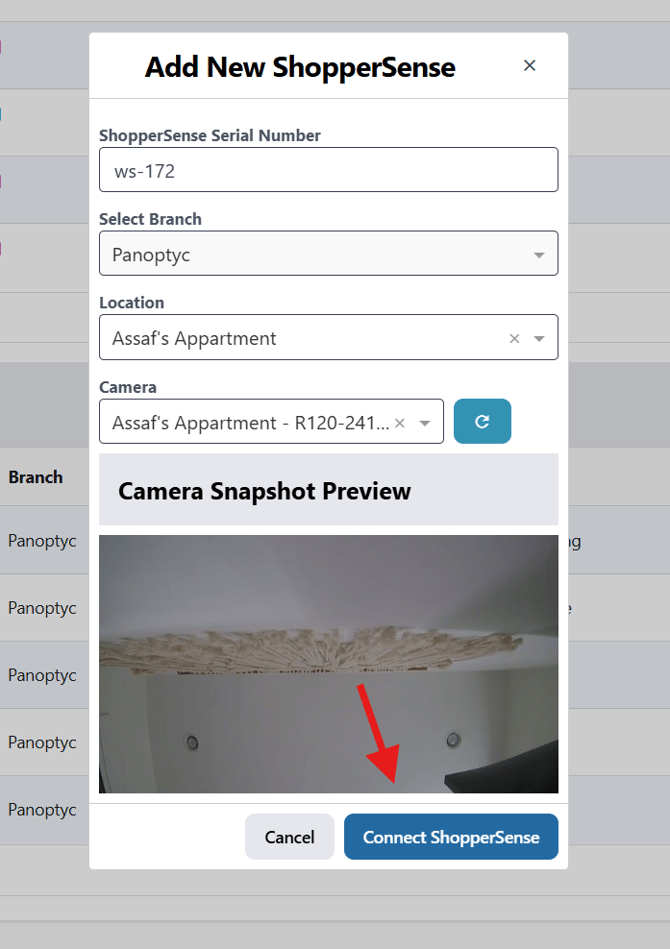
Step 4: Verify the Setup
- If done correctly a new entry will be placed at your branch.

- Your camera should begin streaming on your ShopperSense monitor. The connection may take a few minutes to appear.
Firewall Requirements
The ShopperSense device needs only PoE power and outbound HTTPS (port 443) to the following hosts:
- *.awsglobalaccelerator.com
- *.amazonaws.com
- *.panoptyc.com
In addition we need UDP port 123 open for NTP timesync on *.google.com (or time*.google.com) - unless a time server is provided by DHCP config.
Ethernet Switch
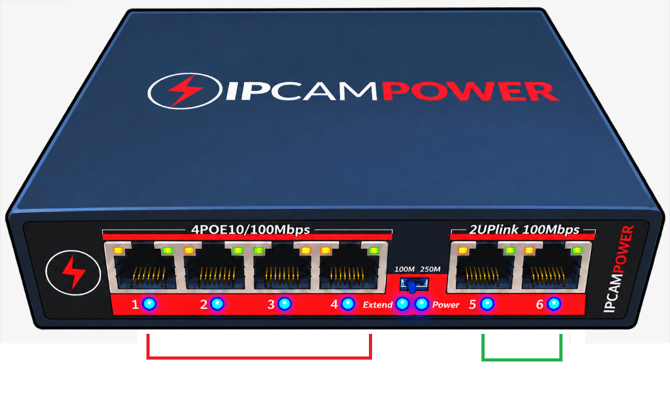
If you are using our included IPCAM Ethernet switch, connect the cables as follows:
- PoE devices (e.g., Rhombus cameras and ShopperSense) → Ports 1–4 (marked in red)
- Internet from your router → Port 5 or Port 6 (marked in green)
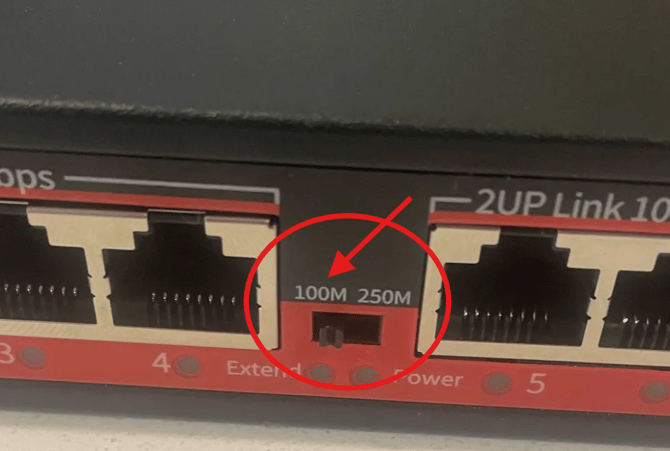
- IMPORTANT: Ensure the small lever on the ethernet switch is at the 100M setting before powering up the ethernet switch.
- If it is already powered on. Unplug the switch, set it to 100M, and replug the switch.
Need help?
Text Support Team at (313) 425-5765 or email support@panoptyc.com.
In your message, include:
- the device serial number (SN).
- the camera it should pair with.
- the installation location.
Support hours: Monday – Friday, 9 a.m.–5 p.m. Eastern Time (EST)