
In Panoptyc, you may also hear the term whitelisting. In this workflow, whitelisting a user means adding them as a Guest User.
There are two quick ways to add a Guest User:
- While sharing a case from the Case Tracking Portal
- Directly through Access Management
Option 1: Add a Guest User While Sharing a Case
If you need to share a case with someone who is not yet set up as a Guest User, you can add them as part of the sharing process.
Step 1: Open the Case Tracking Portal
From the left navigation menu, select Case Tracking.
Use the available filters to find the branch, location, and case you want to share.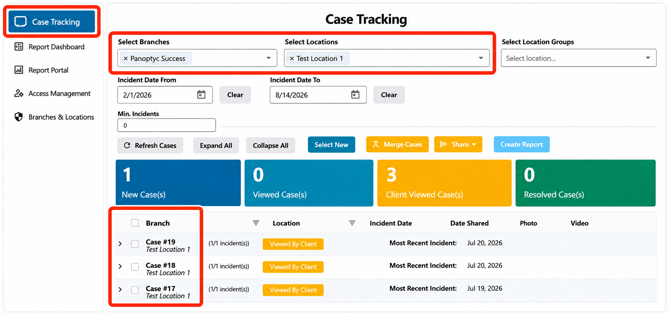
Step 2: Select the Case
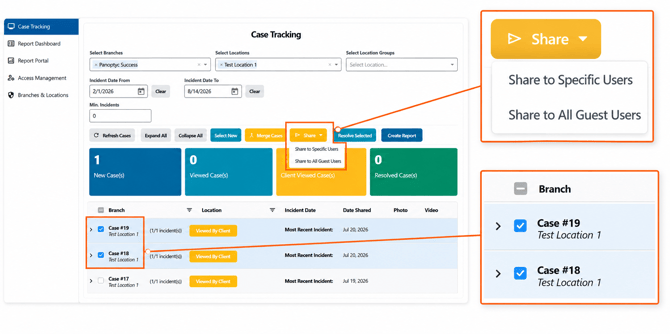
Select the case you want to share.
Once a case is selected, click Share.
Step 3: Enter the Recipient
The Share to Specific Users window will open.
In the Users field, enter the email address of the person you want to share the case with.
If the user is not already associated with the location, sharing the case with them will add them as a Guest User for the applicable location.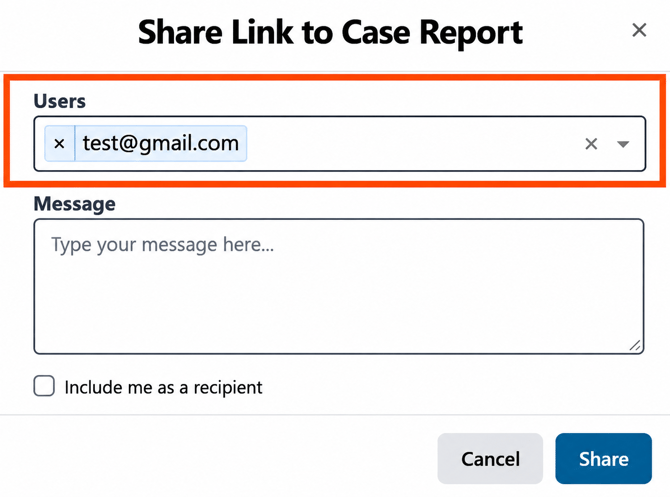
Step 4: Add a Message if Needed
Use the Message field to provide additional context to the recipient.
You can also select Include me as a recipient if you would like to receive the shared message as well.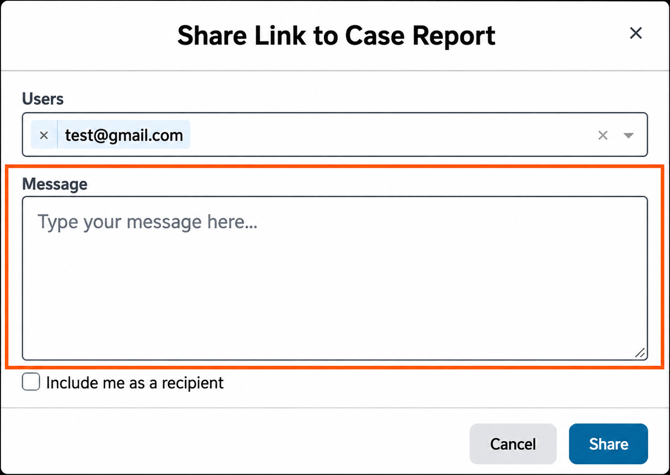
Step 5: Share the Case
Click Share to complete the process.
The recipient will now be able to receive the shared case, and their Guest User access will be associated with the applicable location.
Quick Tip: If you are already sharing a case with a new client contact, you do not need to leave the Case Tracking Portal to add them separately through Access Management.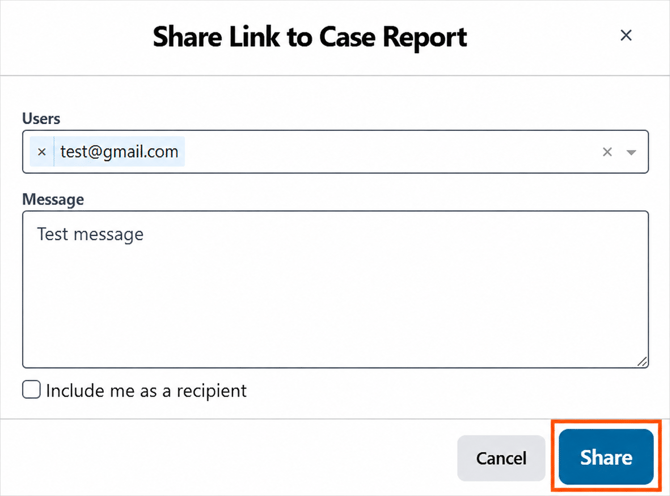
Option 2: Add a Guest User Through Access Management
You can also add and manage Guest Users before sharing any cases or reports.
This option is useful when setting up a new client contact or reviewing who currently has access to a location.
Step 1: Open Access Management
From the left navigation menu, click Access Management.
The Manage Locations page will open.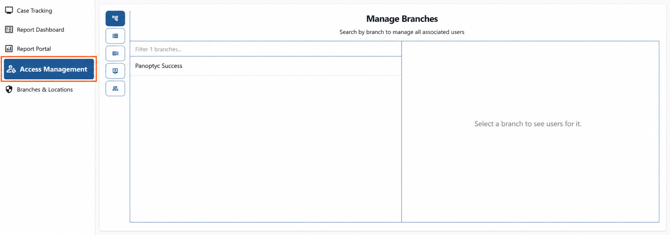
Step 2: Select the Location
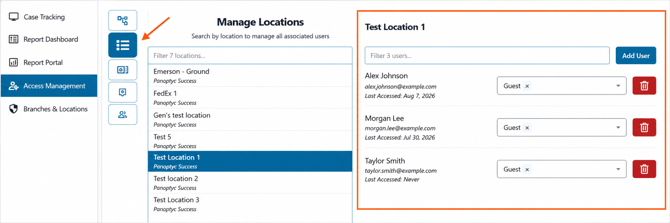
Find and select the appropriate location from the location list.
Once selected, the right side of the page will display the users currently associated with that location.
You can also see information such as the user's role and their most recent access activity.
Step 3: Click Add User
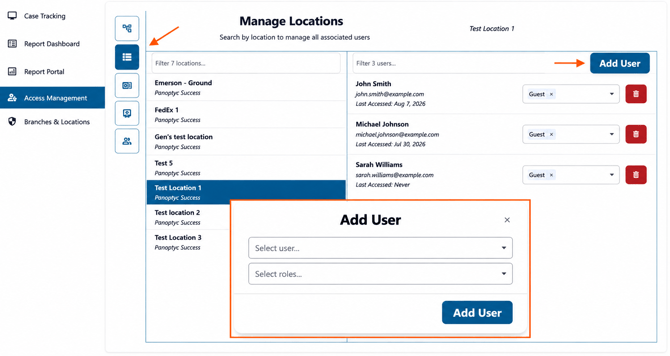
Click Add User in the upper-right corner of the user section.
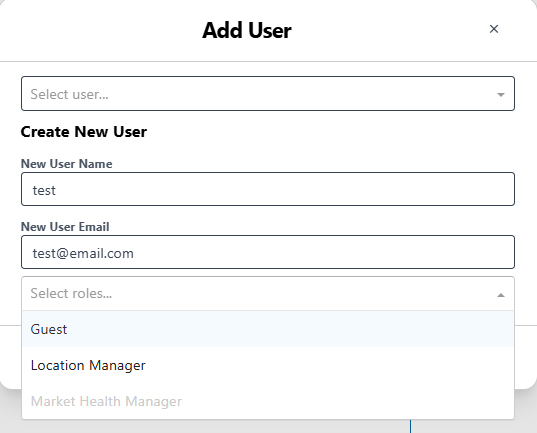
The Add User window will open.
Creating a New Guest User
If the person does not already have a Panoptyc account:
- Enter the user's name in New User Name.
- Enter their email address in New User Email.
- Open the role dropdown.
- Select Guest.
- Click Add User.
The new Guest User will then appear in the list of users associated with that location.
Managing Existing Guest Users
From the Manage Locations page, you can review users currently assigned to a location.
For each user, you can see their assigned role and access information. If a user should no longer have access to the location, use the remove/delete option beside their name to remove their association with that location.
Regularly reviewing this list can help ensure that only the appropriate client contacts retain access.
Which Method Should I Use?
Use Case Tracking when you are already sharing a case with a new contact and want to give them Guest access as part of the same workflow.
Use Access Management when you want to:
- Set up a Guest User before sharing anything
- Add an existing Panoptyc user to another location
- Review who currently has access to a location
- Add or remove Guest Users
- Keep location access organized as client contacts change
Important Reminders
- Whitelisting means adding a user as a Guest User.
- Search for an existing user before creating a new one to help avoid duplicate accounts.
- Guest access is associated with the appropriate location.
- When creating a client Guest User through Access Management, make sure Guest is selected as the user role.
- Review Guest Users periodically to ensure access remains current and appropriate.
If you have questions about Guest Users or Access Management, contact Panoptyc Support at support@panoptyc.com or your Customer Success Manager.