
You can log in to the Rhombus Web Console by visiting:
https://console.rhombussystems.com/login/
Once signed in, please follow these steps to grant Certified Partner access to Panoptyc:
-
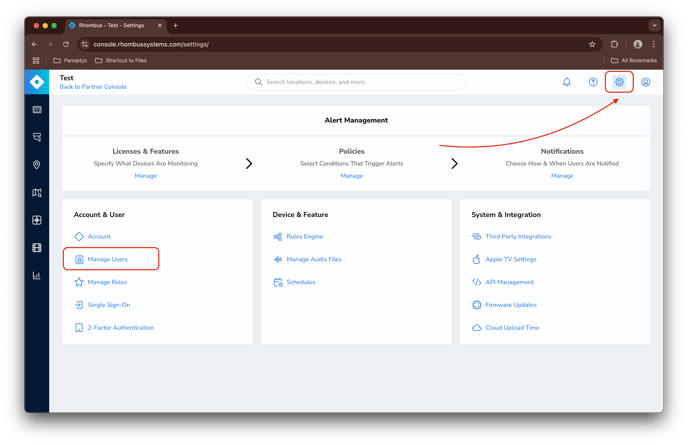
Click the gear icon (⚙️) in the top-right corner of the page to access Settings, then select Manage Users.
-
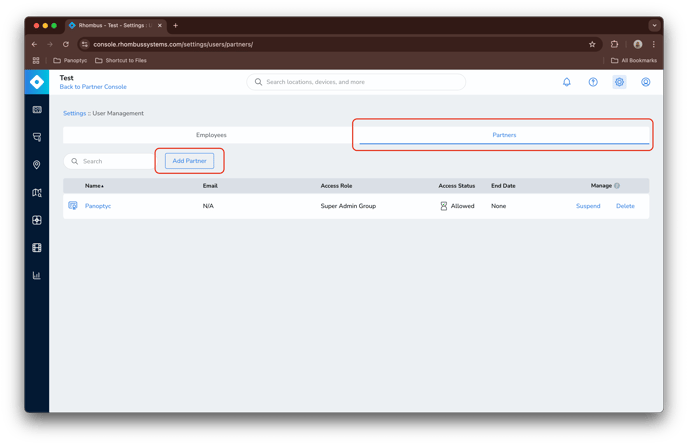
Select the Partners tab to access the partner management section.
-
Click Add Partner in the upper-right corner. A pop-up window will appear.
-
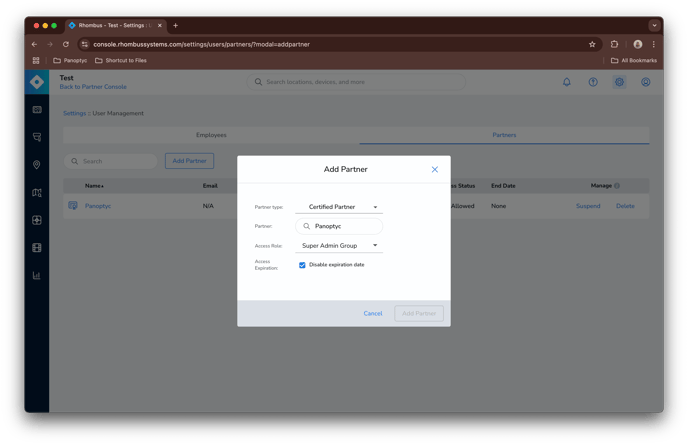
In the pop-up:
-
Select Certified Partner
-
Search for and select Panoptyc
-
Choose Super Admin Group
-
Check the box labeled Disable expiration date
-
Click Add Partner to finalize
-
After completing these steps, Panoptyc will appear in your User Management > Partners list, as shown below: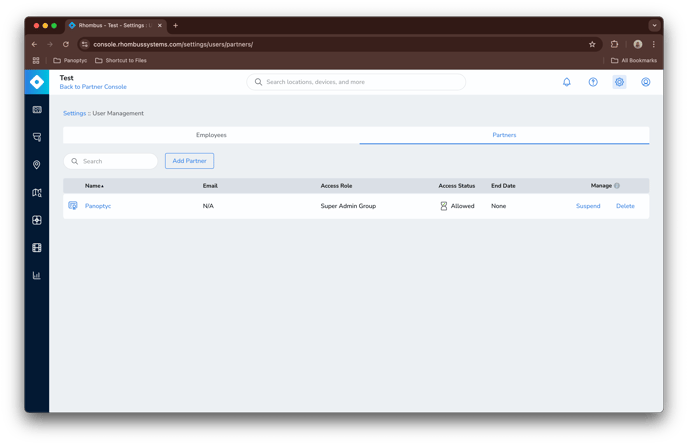
If you prefer a visual walkthrough, you can watch the video guide below for step-by-step instructions: